
Google Business Profile Optimization: A Step-by-Step Guide
Google Business Profile optimization means making your free Google listing complete and accurate, so Google can match you to nearby searches, and active, so the people searching choose you. Google says local results are based mainly on three things: how well your profile matches the search, how close you are to the person searching, and how well known your business is. You can’t move the second. You control most of the rest.
The profile is the part of local search you can run yourself, and it’s also one part of what local SEO services cover, alongside your website and mentions of your business on other sites. We’ve set up more than 100 Business Profiles. How to optimize your Google Business Profile comes down to seven steps, after one check that you qualify. Claim and verify it, get your core details right, tell Google what you do, add photos and posts, build reviews, keep it accurate, and read your Performance report.
How Google Decides Which Businesses Show Up
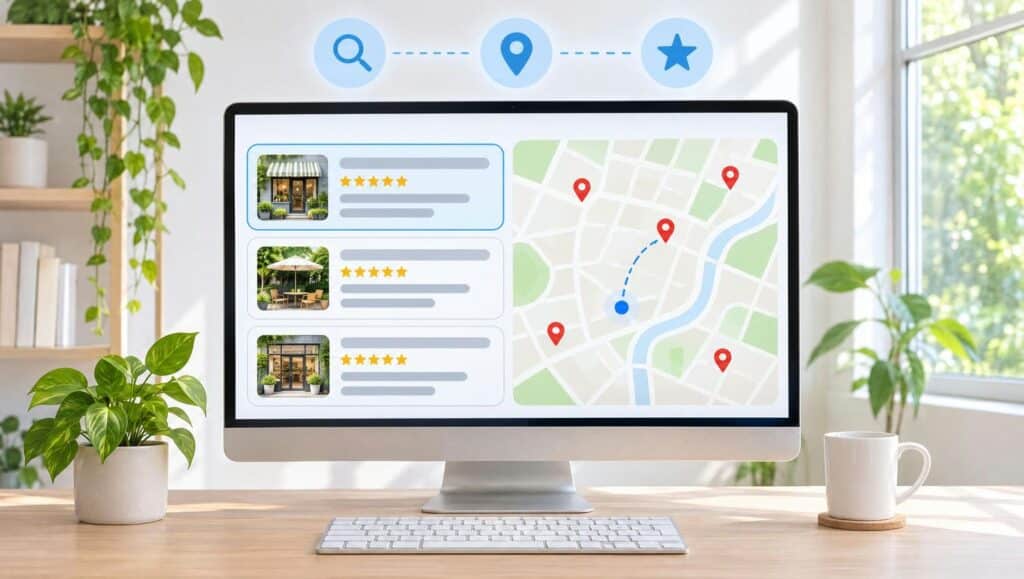
Before you touch a setting, know what Google says it looks at, so your effort goes where it counts. Google publishes its own short explanation of local ranking, and it’s plainer than most of the advice built on top of it. Three factors lead that explanation, and you can influence two of them.
The Three Main Things Google Weighs
In plain terms, the three are:
- Relevance: how well your profile matches what someone searched for. Google says complete, detailed business information helps it match you to relevant searches.
- Distance: how far your business is from the person searching. If they don’t share their location, Google uses what it knows about where they are.
- How well known you are: Google bases this on information like how many websites link to your business and how many reviews you have.
Links from other websites belong to the wider job of local SEO, beyond the profile itself. Reviews sit squarely inside the profile, and so does most of the information that feeds relevance. Google’s own guide to local ranking ties its advice to things you can see and fix: your information, your verification and your reviews.
What Optimization Can and Can’t Change
Start with what you can’t change. Distance is fixed by where you are and where your customer is standing, and money doesn’t buy a shortcut. In Google’s words, “There’s no way to request or pay for a better local ranking on Google.”
What you do control is information, verification and reviews. Google says businesses with complete and accurate information are more likely to show up in local results, and that inaccurate information might keep your profile out of relevant searches in your area. It says verifying makes your profile more likely to show up, and that more reviews and positive ratings can help your local ranking.
Google doesn’t say posts or photos affect your ranking. Our experience says otherwise. In our experience, weekly posts and real photos of your day-to-day work help a profile move up, alongside a complete profile and real reviews. Google hasn’t confirmed that, so take it as what we’ve seen, not as Google’s rule.
Before You Start: Who Qualifies and Which Setup Fits
Two decisions come before Step 1, because they change what you enter as your address and what Google asks you to prove. Get them wrong and the trouble tends to surface later, when it’s harder to fix.
Who Can Have a Business Profile
Google’s test is simple: a business must make in-person contact with customers during its stated hours. That rules out businesses that operate only online, rental or for-sale properties such as vacation homes, model homes or vacant apartments, and lead-generation companies. So a store that only sells online doesn’t qualify on that basis, however real the business is. Only the owner or an authorized representative may verify and manage the profile. Each location gets one profile, whether you keep it in one account or spread your locations across several.
Offices with several professionals, like clinics and law firms, need extra care. A practitioner shouldn’t have several profiles to cover different specialties, and support staff shouldn’t create their own. Google has specific rules for who gets a profile, so check its guidelines before creating more than one. Breaking these rules may lead to suspension of the profile, the Google account, or both.
Storefront, Service-Area or Hybrid
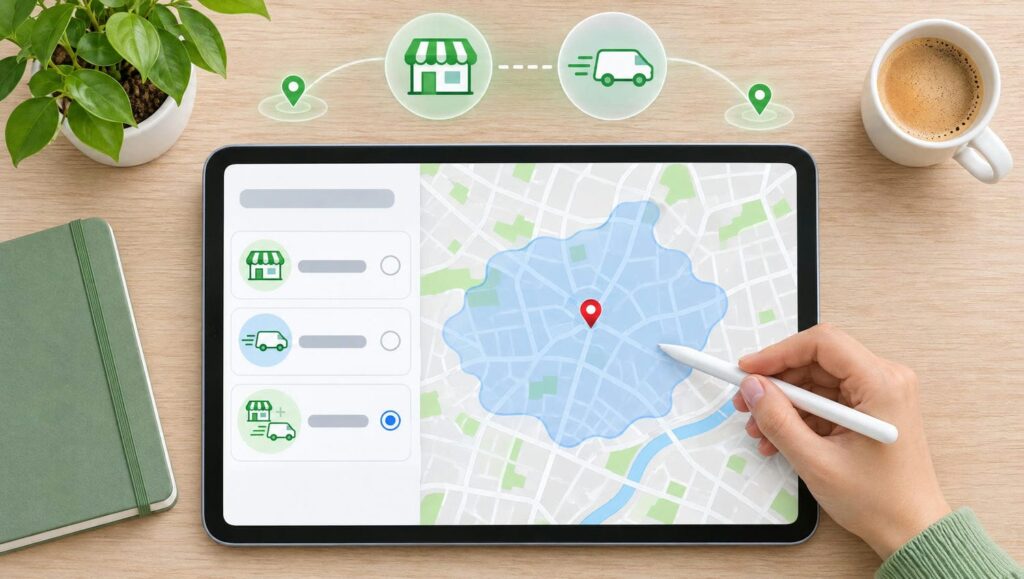
Google sorts businesses into three setups. A storefront serves customers at its address. A service-area business visits or delivers to customers and doesn’t serve them at its address. A hybrid does both.
The choice decides what customers see. A service-area business hides its address and lists the areas it serves instead, and if you don’t serve customers at your address, Google says to remove it from the profile. The choice also changes what Google asks you to show if you verify by video. A storefront shows its signage and surroundings, while a service-area business shows its tools, its equipment or a branded vehicle.
In the GTA, a renovation contractor who works in clients’ homes across York Region is a service-area business. A clinic with a front desk is a storefront. A bakery that also delivers is a hybrid.
Home Addresses, P.O. Boxes and Virtual Offices
Google asks for a precise, accurate address, a service area, or both. P.O. boxes and mailboxes at remote locations aren’t acceptable, and Google suspends profiles that use a P.O. box. A mailing address you don’t operate from isn’t eligible either. A desk in a co-working space needs clear signage, and Google expects that office to receive customers during business hours and be staffed by your own people. A service-area business can’t list a virtual office unless it’s staffed during business hours.
Home addresses follow the same test. Google’s rule is in-person contact with customers during your stated hours, and a business that doesn’t serve customers at its address hides it and lists service areas. So a home address belongs on the profile only if customers come to you there.
In our experience, nearly every client we’ve seen stuck in verification was listing a home as the business address. If you do see customers at home, run it like any storefront. Be ready for walk-ins during your posted hours, ideally with a front office near the door.
Step 1: Claim and Verify Your Profile

Until your profile is verified, much of it stays switched off. Your photos don’t show, you can’t reply to reviews, and the Performance report isn’t available. So verification comes first, before you spend an hour on descriptions and photos. Google moves buttons and menus often, and the steps here are current as of October 2026.
Find, Claim or Create Your Listing
Start from Google’s Business Profile page and choose to add your business. Search by your business name and address first, because a profile for your business may already exist. If it does, claim it rather than start over; if not, follow the on-screen steps to create it. Once it’s added and verified, customers can find you on Search and Maps. Our advice is to set it up under a Google account the business controls, then add staff or an agency as managers rather than owners.
When Someone Else Already Owns It
This is common. A former employee, a past agency or a previous owner set the profile up years ago, and nobody remembers the login.
At the time of writing, the process is to request access from the listing itself. Google emails the current owner, who has 3 days to respond. If there’s no response after 3 days, you may have the option to claim the profile, and you can also try to appeal the decision.
Whatever happens, don’t create a second profile for the same location to get around it. Google’s rule is one profile per location, and a duplicate breaks that rule while leaving the original listing exactly where it was.
How Verification Works
Google picks the verification methods you’re offered, based on your business type, public information, region and hours, and you can’t change them. The options you might see:
- Phone or text: you must be able to answer the business line or receive texts on it. Automated phone menus can’t receive the code.
- Email: you need access to the email address shown on the verification screen.
- Live video call: available only during your business hours, and you take the call from your business.
- Video recording: a short, live recording that shows your location and proves you run the business.
- Mailed postcard: this isn’t available for all businesses. Most codes arrive within 14 days and expire after 30 days. While you wait, don’t edit your name, address or category, or the code won’t work.
In some cases, Google verifies a profile instantly, for example when you’ve already verified your website in Google Search Console. Otherwise, Google’s review of a verification takes up to 5 business days, and on rare occasions longer. Here’s the catch: the wait is normal. Opening a second profile to get around it breaks Google’s one-profile-per-location rule, and you’d still have the first profile to deal with.
Getting Through Video Verification
This applies only if Google offers you video verification, because Google chooses which methods you get. At the time of writing, the recording must be at least 30 seconds long, recorded live and uploaded from your phone through your Business Profile, in one unedited take with no breaks. You can’t record it ahead of time and upload it later. Google’s review can take up to 5 business days.
What to show depends on your setup:
- Storefront or hybrid: street signs, building numbers or nearby businesses, then your storefront or signage, with your business name on a permanent fixture like a sign, wall or window. Then show something that proves you manage the business.
- Service-area business: street signs or landmarks at your business address, the tools or equipment you work with, and you doing the work or accessing something only the business has, such as unlocking a branded van.
Keep bank, tax and ID numbers out of the frame, along with other private information and other people’s faces. Plan your route before you press record, because one unbroken take leaves no room to wander.
Step 2: Get Your Core Details Exactly Right
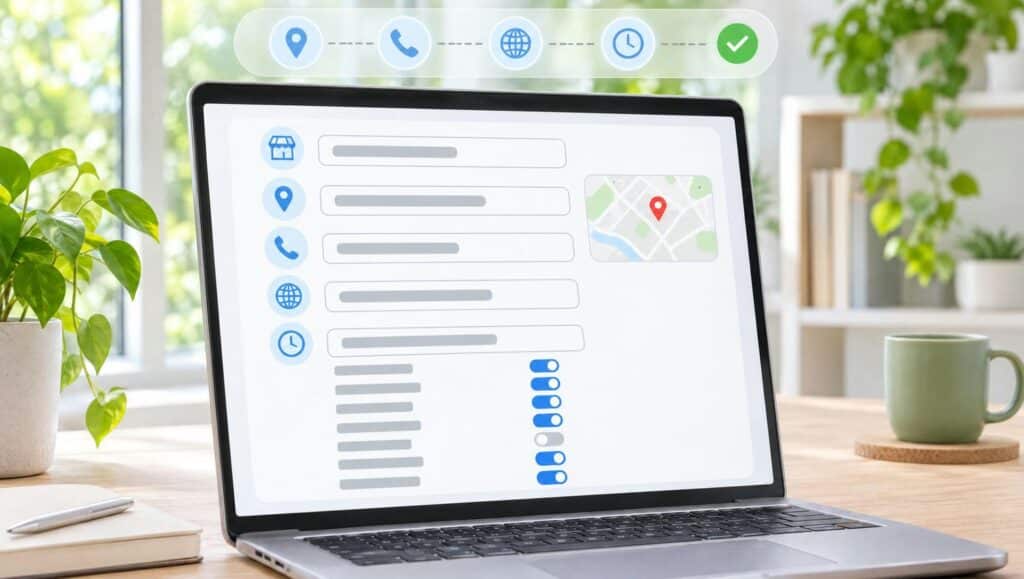
Your name, address, phone, website and hours are what Google checks against the real world, and what customers act on. A wrong detail costs you twice: once with Google, and again with the customer who calls a dead number. Get them right once, and change them carefully (Step 6).
Your Business Name
Google’s guidelines for representing your business ask for your real-world name, exactly as it appears on your sign, website and stationery, and as customers know it. What doesn’t belong in the name includes marketing taglines, store codes, trademark symbols, words in all capitals, hours, phone numbers or web addresses, special characters or irrelevant legal terms such as Inc. or Ltd., service or product information, and location information.
Adding extra information isn’t permitted, and it could get your profile suspended. A keyword-stuffed business name is one of the common mistakes we see, and it’s an easy one to avoid: the name on your door is the name on your profile. A name change might also mean verifying again.
Your Address or Service Areas
This is where the storefront or service-area choice you made before Step 1 takes effect. A storefront lists a precise, accurate street address. A service-area business hides its address and lists up to 20 service areas by city, postal code or other area. You can’t set a radius around your base, and the whole area shouldn’t reach more than about 2 hours’ drive from where you’re based. If approved, service-area changes may take up to 48 hours to show on your profile.
List the places you actually work, not every place you’d like to. A Richmond Hill landscaper, for example, lists the towns its crews really work in, such as Richmond Hill, Aurora and Newmarket, rather than every city in the GTA. A tight, honest list matches the work you can actually take on.
Phone Number and Website Link
Use a local number rather than a central call-centre line whenever possible, and make sure it connects to your location. Mobile or landline is fine. Fax isn’t. You can add up to 2 more numbers, but don’t use numbers or web addresses that redirect people to anyone else’s page, including social media pages.
For the website, link a page that represents this location, and enter the full web address, starting with https. Booking and ordering links, where your category offers them, are a separate field with their own rules. Each must lead to a dedicated page for your business, and it can’t be a social media page, a messaging link, an app-store link or a link shortener. You can add only one link per domain.
The website button only pays off if the page it opens loads quickly on a phone. Someone standing in a parking lot won’t wait for a slow page to load, which is why page speed optimization matters as much as the link itself.
Regular Hours and Holiday Hours
One condition comes first. Businesses that operate only by appointment, or whose hours vary, like classes, showtimes or worship services, shouldn’t list hours at all. Everyone else lists regular customer-facing hours, then sets special hours for holidays and one-off events. A seasonal business can use its in-season hours and mark itself temporarily closed in the off-season. Google lists hours, special hours included, among the details that have to be accurate.
Set special hours before each Ontario long weekend and the December holidays, not on the morning of. A customer who drives to a locked door has had a bad first experience of your business, and it’s one they may describe in a review.
Step 3: Tell Google What You Do

Categories, the description, services and attributes answer a customer’s first question: do they do what I need? Google says complete, detailed information helps it match you to relevant searches, and these fields are where most of that detail lives.
Choosing Your Primary and Additional Categories
Pick the primary category that best describes your business. You can add up to 9 more, but Google asks you to use as few as possible, each as specific as possible while still representing your main business. Use extra categories for special departments or services, not one per product or service, and never solely as keywords or to describe features of your business.
If the exact category you want doesn’t exist, choose a general one, because you can’t create your own. Categories can also bring extra features, such as online ordering links for restaurants, so the category you pick might change what your profile can offer. Google can also read category information from your website and from mentions of your business around the web.
In our experience, getting the primary category right is one of the things we see move the needle. Before you choose, look at how similar businesses near you describe themselves. One caution: adding a category or editing one might bring a request to verify again.
Writing Your Business Description
You have up to 750 characters. Use them for useful, honest information about your services and products. Leave out anything unrelated to your business, don’t focus on promotions, prices or sales, and don’t add links of any kind.
In our experience, most people don’t realize the most important part is the opening, the part customers see before the “read more” link. So say who you are, what you do and where you do it in the first sentence. A plumber’s opening line might read: “We’re a family-run plumbing company fixing leaks, drains and water heaters across Richmond Hill, Markham and Vaughan.”
Here’s the catch: write it for a person, not as a list of keywords. A customer reads the first line and decides, and a string of search terms tells them nothing about you.
Adding Your Services and Products
Businesses in certain categories, like service businesses, might have the option to list services. You can choose from Google’s suggestions or add your own, and add a description and a price as details if you want. Custom service names can’t contain profanity, gibberish, personal information, prices or phone numbers, and names that break those rules are rejected automatically. The no-prices rule applies to the name, so a price can still go in the service details.
Retail has its own version. If you have a local store selling physical goods, you can add products with Google’s product editor at no charge, and in-store products might show in local results.
Leaving services empty is one of the common mistakes we see. We suspect a page on your website for each service in your profile helps as well. If you build those pages, make each one people-first content, written for the customer who wants to know what the service is, who it suits and what happens after they call.
Attributes, Links and Other Details
Attributes are yes-or-no facts about your business, such as whether you have outdoor seating. Some you set yourself, and others come from customers who have visited. The ones available vary by category and country, and their names can change over time. Attribute changes go through the same review as any other edit.
If you’re opening soon or relocating, you can set an opening date. You only need the month and year, you can enter a date up to 1 year ahead, and it shows on Google 90 days before the date.
Some options, such as WhatsApp or text chat and social media links (one per platform), are offered only in some regions. If you don’t see them in your profile editor, they aren’t available to your profile yet.
Step 4: Add Photos, Videos and Posts

Once you appear, this is what persuades someone to pick you. Google describes photos and videos as a way to show customers what you offer and tell the story of your business. Posts do the same job for whatever is new this week.
Photos and Videos: What to Upload
Start with your logo and a cover photo. Google notes that in some cases, the cover photo you choose may not show first.
The specs are straightforward. Photos should be JPG or PNG, between 10 KB and 5 MB, with 720 by 720 pixels recommended and 250 by 250 the minimum. Keep them in focus and well lit, without heavy editing or filters. Videos can run up to 30 seconds and up to 75 MB, at 720p or higher.
For subjects, Google suggests exterior, interior, product, at-work and team photos, with a tip to add at least three of each type. Photos show only after you’re verified, and Google reviews each upload, so a new photo can take up to 24 to 48 hours to appear. Customers can add photos too. You can ask Google to remove one, but you can’t delete it yourself.
Our advice: add photos of your day-to-day work, and don’t fill your profile with stock photos. Keep it real. A slightly crooked photo of your actual crew tells a customer more than a polished stranger ever will.
Posts: Updates, Offers and Events
Posts come in three types: updates, offers and events. An event needs a title and start and end dates and times. An offer needs a title, dates and times, and gets a “View Offer” button automatically.
Google reviews each post before it goes live, and posts older than 6 months are archived unless you set a date range. Google may also remove posts with contact details it can’t verify, so attach a “Call now” button rather than typing a phone number into the text. Google publishes no length limit for posts, so keep each post to one clear message.
Weekly posts help, in our experience. Talk about your services, projects you’ve finished and offers you’re running. A short post about a job you wrapped up this week beats a long one you never get around to writing.
Step 5: How to Get Google Reviews and Reply to Them

Google says more reviews and positive ratings can help your local ranking, and reviews are what a stranger reads when deciding whether to trust you. Here’s the honest catch: in our experience, reviews are hard to get. Customers mean to leave one, then life takes over and they forget. The answer is a simple routine you run on every job.
Get Your Review Link and QR Code
From your profile, open your reviews and choose “Get more reviews”. From there you can copy the link or save the QR code. Currently, the QR code can only be made on a computer browser, not on a phone, so do this step at a desk. Once it’s saved, print it for the counter, a leave-behind card or the back of an invoice.
Share the link by email or text after the job, too. A customer who wasn’t ready in the moment can tap it later, and the same link works as a reminder.
Ask in Person, Then Follow Up
Our method is simple: ask every customer, and pick your moment. That moment is usually just after they’ve received the work, while they’re excited about it, and the excitement is the reason the moment works. Asking everyone also keeps you clear of Google’s ban on asking only the customers you expect to be happy.
The most success we’ve seen comes from asking in person at that moment, which is where the QR code helps. We find people are more likely to leave a review while you’re standing there, as long as you keep it easy and optional. Then follow up, because life happens and people get busy. Google’s own tips include reminding customers, so a polite reminder is fair.
If they’d like to add a photo, they can. Keep that invitation open and optional, never ask for a photo of something specific, and never tell them what to write. Keep the mechanics simple: one link, one ask, one reminder.
The Review Rules You Can’t Break
The Google Maps content policy sets the rules for reviews, and several of them apply to the business itself, as well as to whoever writes the review:
- No incentives of any kind, such as discounts, free goods or services, or payment, for posting, changing or removing a review. Google prohibits them outright, and disclosing the incentive doesn’t make it acceptable.
- Don’t discourage negative reviews, and don’t ask only your happy customers. Google bans selectively asking for positive reviews.
- Asking is fine. Requiring or pressuring customers to review while they’re on your premises is not, and neither is asking them to include specific content.
- No review quotas for staff, and no asking for reviews that mention a staff member.
- No reviews based on a conflict of interest, such as reviews from current or former employees, family or competitors. Never post reviews on a competitor’s profile.
Google removes fake reviews and can restrict or disable the accounts involved. If Google finds fake reviews, it can block new reviews and hide existing ones for a period, and it may show customers a warning on your profile. That’s a steep price for a few extra stars.
Replying to Good and Bad Reviews
You must be verified to reply. The reviewer is notified when you reply, and you can edit or delete your reply later. Replies are checked against Google’s policies before they show, which usually takes up to 10 minutes, though sometimes up to 30 days. Google says helpful replies show you’re responsive and can help your business stand out. You may include your own business contact details in a reply.
Negative reviews need the most care. Reply calmly and briefly, thank them, and never share the customer’s details. Don’t argue the facts in public; offer to sort it out by phone instead. The reviewer may not change their mind, but the next customer reading the exchange will judge you on your tone. Future customers are the real audience.
Fake Reviews and Extortion Scams
Report a review that breaks Google’s rules from your profile, or through Google’s Reviews Management Tool. Reviews that break policy are removed. Don’t report a review just because you disagree with it, though, because Google doesn’t get involved in disputes between businesses and customers. A decision typically takes several days. If a flagged review isn’t removed, you get a one-time appeal that can cover up to 10 reviews.
Extortion is a different problem. It can start with a sudden run of 1-star and 2-star reviews, followed by someone demanding money to remove them. Don’t engage, and don’t pay. Gather the evidence straight away and report it through Google’s extortion report form.
Step 6: Keep Your Profile Accurate

A profile drifts out of date quietly: a new phone line, a change in hours, a service you’ve stopped offering. Google checks every change you make, so keeping it current takes a little care.
How Google Checks Your Edits
Edits to a verified profile are reviewed against Google’s guidelines. Edits usually take up to 10 minutes to review, though sometimes up to 30 days. Google may not approve a change it can’t confirm, and you may be able to appeal a rejected edit. Outside the UK and Europe, which includes Canada, you appeal a rejected edit or a blocked photo or post through Google’s contact form, not the appeals tool.
Verified profiles also show a Profile Strength indicator that flags missing information. Use it as a to-do list.
Make one important change at a time, and confirm it’s live before you make the next. Each change is reviewed, and some can bring a request to verify again. One change at a time means that if something stalls, you know which edit caused it.
Changes That Can Trigger Re-Verification
Google treats three changes with three different strengths:
- Changing your name: you might need to verify again.
- Moving: Google is firm. “If you move your business to a new address after it’s verified, you must verify your business again.”
- Adding or changing a category: you might be asked to verify again.
When we moved our studio in October 2026, we deliberately chose an address still in Richmond Hill so we wouldn’t lose our rankings. Once we entered the new address, it updated straight away. Google hasn’t asked us to verify again, likely because we’re a long-standing business or because it recognized a commercial space. Our Maps rankings didn’t dip.
We still put our sign up on the door in case Google ever does ask. If Google asks a storefront for a video, it looks for the business name on a permanent fixture like a sign. That’s one case, though, and Google’s rule is the one to plan around: if you move, plan to verify again.
The toughest part of our move was a separate job: updating our address on the various directories that list us, so our name, address and phone number match everywhere. That wider work is part of local SEO beyond the profile.
Step 7: Read Your Performance Report

The Performance report shows what your profile is doing for you. It’s available only for verified profiles, and you can pick a date range. Read it monthly, and you’ll see how people find you and what they do next.
What the Report Counts
The core numbers are these:
- Views: unique people who viewed your profile on Search and Maps. Each person is counted once a day.
- Searches: the search terms people used to find you. This updates at the start of each month and can take up to 5 days to appear.
- Calls: taps on the call button on your profile, not every phone call you get.
- Directions: how many people asked for directions to your business.
- Website clicks: how many times people clicked the website link on your profile.
Some categories also see extras, such as bookings, menu clicks, product views and offer views. All of it includes activity from both unpaid results and Google Ads. Calls is the easiest number to misread. It counts taps on the button, so a customer who dials the number from your website or a printed flyer doesn’t appear there.
Turning the Numbers Into Decisions
Pick the number that matches how customers reach you. For trades, that’s usually calls. For storefronts, it’s direction requests. For appointment businesses, it’s website clicks or bookings. Watch that number first, and treat the rest as context.
Compare the same months year to year where you can, because seasonal businesses swing. A landscaper’s March will usually trail its June, and that tells you nothing about the profile. Read the search terms, too. If a service you offer never shows up there, check that it’s in your services and your description.
If you run Google Ads, remember the report mixes paid and unpaid activity, so a jump during a campaign isn’t all profile. The report also stops at the click. What visitors do once they reach your website shows up in Google Analytics 4, which picks up where this report ends.
If Google Suspends Your Profile

Google may suspend or disable profiles that don’t follow its guidelines. When that happens, the public can’t see the profile, and you and your managers can’t act on it, though you can ask for it to be reinstated. One client had built up a successful profile with more than 200 reviews, and then it was suspended. A long review history doesn’t make a profile immune to suspension.
What Can Get a Profile Suspended or Disabled
Google documents several causes, and how firmly it words each one varies:
- Extra information in your business name: it isn’t permitted, and it could result in suspension.
- A P.O. box as your address: Google says these profiles will be suspended.
- A business that doesn’t exist where it claims to be: Google says it will disable the profile.
- Breaking the eligibility and ownership rules: this may result in suspension of the profile, the Google account, or both.
- Fake reviews: Google removes them, can block new reviews and hide existing ones for a period, and can restrict or disable the accounts involved.
- An account restriction: every profile on that account is suspended, and you can’t create or claim others.
We’ve seen businesses suspended after using a P.O. box as their address, and we always advise against it.
How to Appeal
First, don’t create a new profile for the same business, and make sure the profile now follows every guideline. An appeal for a profile that still breaks the rules has nothing to stand on.
In Google’s appeals tool, select the decision you’re appealing and add evidence if you have it, such as a business registration, a business licence, tax certificates or a utility bill. The name and address on those documents should match your profile. Appeals can only be submitted once, so don’t send several for the same issue. If the request is denied, and only then, Google may be able to do an additional review using evidence you didn’t include the first time.
Decisions arrive by email and can take up to 5 business days. For a business in Canada, the appeals tool covers suspended or disabled profiles, while a rejected edit goes through Google’s contact form instead.
Some reviews might be removed after a profile is reinstated.
Your Google Business Profile Optimization Checklist
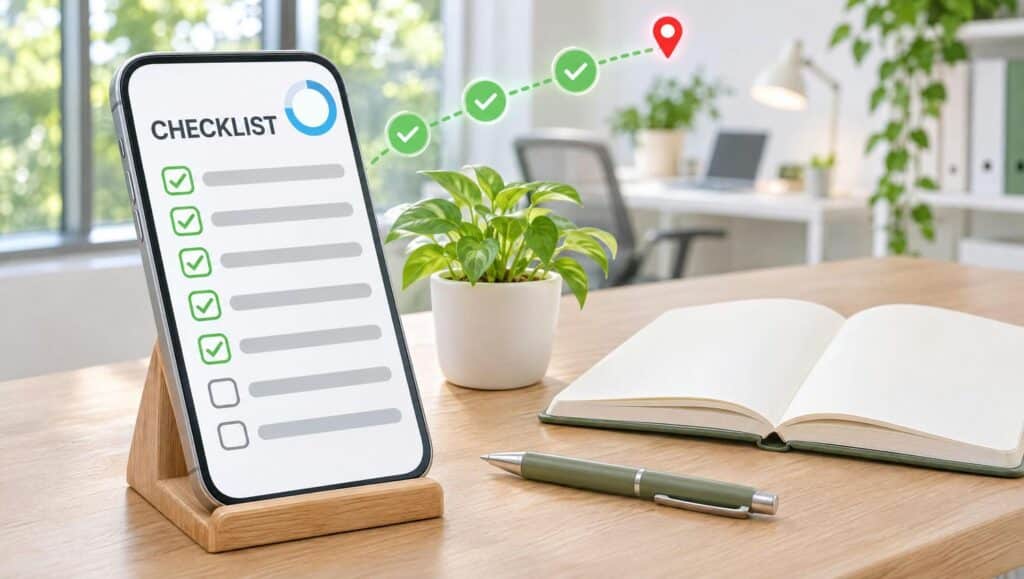
In our experience, no single setting brings in customers on its own. A profile that does gets all of it right: a complete profile, the right primary category, a strong description, every service filled in, real reviews from real customers, regular posts and real photos. Work down the list once for setup, then check your edits and your Performance report every month.
| Step | Do this | Avoid |
| Before you start: qualify | Confirm you meet customers in person during your stated hours, then choose storefront, service-area or hybrid | A P.O. box, a mailing-only address or an unstaffed virtual office |
| Step 1: Claim or create | Search for your business first, and set it up under a Google account the business controls | A second profile for the same location |
| Step 1: Verify | Use the method Google offers you; if that’s video, record one live, unedited take of at least 30 seconds | Editing your name, address or category while you wait for a mailed code |
| Step 2: Business name | Use the name on your sign, website and stationery | Adding a keyword, a city or a tagline |
| Step 2: Address or service areas | Storefront: a precise street address. Service-area: up to 20 cities, postal codes or areas, never a radius | Listing places you don’t actually serve |
| Step 2: Phone and website | A local number where possible, and the page for this location | A number or link that redirects to someone else’s page |
| Step 2: Hours | Regular hours and holiday hours, unless you work only by appointment or your hours vary, like classes | Forgetting a long weekend |
| Step 3: Categories | The most specific primary category; extras only for real departments or services | A category for every service |
| Step 3: Description | Who you are, what you do and where, in the opening sentence (our advice), within 750 characters | Links, a focus on prices or sales, or a list of keywords |
| Step 3: Services and products | If your category offers services, list every one you provide | Leaving services empty (a common mistake we see) |
| Step 4: Photos and posts | Real photos of your work and team, and a post every week (what we’ve seen help) | Stock photos (our advice) |
| Step 5: Reviews and replies | Ask every customer, in person with your QR code, just after the work is done; follow up, and reply to reviews | Incentives of any kind, or telling customers what to write |
| Steps 6 and 7: Keep it current | Check each edit goes live, and read the Performance report every month | Moving without being ready to verify again |
Doing It Yourself or Getting Help

Most owners can run their own profile. Google’s Business Profile can be used at no charge, though third parties often charge to manage it. If you do bring in help, our advice is to keep ownership: add an agency or staff member as a manager, never as an owner. Only owners control who has access and can change permissions at any time, so a falling-out never costs you your own listing.
No one can promise or directly influence your ranking through special means. Google says so about third parties, and the same goes for us. That also makes calls claiming to be from Google easy to judge. Google says it will never ask for payment details over the phone or guarantee you a special spot, and scammers may claim to work with Google or for Google. Hang up, and if the calls keep coming, report them to the Canadian Anti-Fraud Centre.
Getting help makes sense when keeping the profile current keeps slipping because you’re busy running the business.
When You’d Rather Hand It Off
If the profile keeps sliding down your to-do list, you don’t have to keep carrying it yourself. At Life Web & Design, Business Profile optimization is included in every one of our SEO plans. Our own profile holds a 5.0 rating on Google, we’ve been building websites since 2014, and we’re an award-winning company recognized by Clutch, UpCity, the Web Excellence Awards and Three Best Rated. What we can do is get every part of your profile right. You can compare plans on our pricing page, or talk to our team about your profile whenever you’re ready.
Frequently Asked Questions
Can I Create a Separate Business Profile for Each City I Serve?
No. Google allows one profile per location, and a business needs in-person contact with customers during its stated hours to qualify at all. A mailing address you don’t operate from isn’t eligible, so renting addresses in other cities doesn’t create new locations. If you travel to customers, list the cities as service areas instead: up to 20, with the whole area within about 2 hours’ drive of where you’re based.
Why Doesn’t My Business Profile Show Up When I Search for My Service?
Start with Google’s own factors. A profile that isn’t verified is less likely to show up, and inaccurate information, including the wrong primary category, might keep it out of relevant searches. Distance is measured from the person searching, so what you see at your desk can differ from what a customer sees across town. A suspended profile doesn’t show at all, and recent edits may still be under review.
How Long Does Google Business Profile Optimization Take to Show Results?
No one can give you a date for ranking results, and reviews build over months. The processing times are clearer: edits usually take up to 10 minutes to review, though sometimes up to 30 days; if approved, service-area changes may take up to 48 hours to show; and new photos can take up to 24 to 48 hours to appear. To judge progress, watch your Performance report month to month, and compare the same months year to year where you can.
Can My Employees or Family Leave Google Reviews for My Business?
No. Google’s rules don’t allow reviews based on a conflict of interest, such as reviews from current or former employees or family members. Canada adds a second reason for care: in 2024, the Competition Bureau warned businesses that they could be liable under the Competition Act for misleading reviews posted by their employees. Keep your reviews to real customers.
What’s Different for Canadian Businesses?
One process is different: outside the UK and Europe, which includes Canada, you appeal a rejected edit or a blocked photo or post through Google’s contact form, not the appeals tool. Beyond that, Canada is a supported country, and Google publishes no separate Business Profile rules for Canadian businesses, so the same rules apply. Some extras, like WhatsApp or text chat and social media links, are offered only in some regions. Google’s own scam-call advice points to a US agency, but in Canada you report those calls to the Canadian Anti-Fraud Centre.

Need a website that pulls its weight?
Design, SEO and hosting from one Richmond Hill studio, since 2014.
Start orderOr call (416) 710-8660Keep reading
More from the studio
 Awards & Recognition
Our Latest Project Is an Awwwards Nominee
We’re proud to share that one of our recent website projects has been officially selected as a Nominee by Awwwards, one of…
 Awards & Recognition
Life Web & Design Honored as a GoodFirms Research Partner
We are thrilled to announce that we have been recognized as an official GoodFirms Research Partner. This honor comes in light of…
 Insights
Is WooCommerce a Good Platform for your Online Store?
With the prediction to reach US$75.55bn revenue in 2023 in Canada, e-commerce is a tempting market sector for many entrepreneurs. However, before…